

Teams typically don't start looking at the Power BI REST API because they love APIs. They start because manual Power BI operations stop scaling. A developer publishes a report by hand, an analyst refreshes a dataset manually, an admin fixes workspace permissions after a release, and nobody wants to repeat that across every environment.
That's the point where Power BI stops being a dashboard tool and becomes an application surface. If you're embedding analytics, managing multiple workspaces, or trying to standardize deployments, the GUI alone won't carry you very far. You need repeatable calls, controlled permissions, and a deployment pattern your team can support without heroics.
TL;DR
A team usually reaches for the Power BI REST API after manual release steps start breaking under real workload. Reports move from dev to test to prod, refresh ownership is unclear, embed tokens need to be issued by an application, and permission drift starts creating support tickets. At that point, the API is part of your operating model, not just a developer convenience.
- Use the Power BI REST API for repeatable operations that need control and auditability. Good candidates include embedding, refresh orchestration, workspace provisioning, permission management, and admin reporting across multiple environments.
- Make authentication a design decision early. Service principal based access is usually the right default for production because it removes dependence on a human account, fits CI/CD better, and is easier to govern at scale. Master user patterns can work, but they create more rotation, ownership, and audit risk.
- Start with app registration and permission boundaries. The first production task is defining what the application can access, which tenant settings must allow it, and how secrets or certificates will be managed. That work determines whether your API integration stays supportable after the first release.
- Treat simple API calls as the easy part. Listing datasets proves connectivity. It does not prove that your refresh process is recoverable, your deployment path is safe, or your embed flow is isolated by tenant and environment.
- Choose one workflow that removes manual work immediately. Automated refresh control, governed report embedding, and environment-aware deployment are usually the best starting points because they cut operational overhead and shorten time-to-insight.
- If your team needs a quick framing on API design terms before implementation, review this API vs REST API explanation. It helps align engineers and BI teams before you set authentication, deployment, and governance patterns.
Who This Guide Is For and When to Use the API
A team launches a Power BI proof of concept with a few manual steps in the portal. Six months later, the same team is supporting multiple workspaces, scheduled refreshes, embedded reports, and production releases across dev, test, and prod. At that point, manual BI administration starts creating release risk, access drift, and avoidable support work.
This guide is for the people responsible for keeping that from happening. That usually means BI developers, data engineers, application engineers building embedded analytics, platform owners, and technical leaders who need an approach that stays supportable after adoption spreads across business units.
The Power BI REST API matters when Power BI stops being a reporting tool used by a few analysts and becomes part of an operating system for the business. It gives teams a programmatic way to control workspaces, datasets, refreshes, permissions, embedding flows, and admin visibility. In production, that translates into fewer manual handoffs, better auditability, and faster delivery of BI changes across environments.
If your team still treats BI as a portal task, the transition usually happens when manual steps no longer scale. If some stakeholders need a quick refresher on the terminology before design decisions start, this explanation of the difference between API and REST API can help align engineers and BI owners.
When the API is the right tool
Use the API when the process needs to be repeatable, governed, or built into another application.
Common examples:
- Embedded analytics in a customer-facing product where token generation, report access, and tenant isolation must happen in application code instead of through manual admin actions.
- Multi-environment delivery where the same deployment pattern has to work across development, test, and production without hidden portal-only steps.
- Operational BI workflows where refresh control, report distribution, or content lifecycle tasks need logs, retries, and ownership that do not depend on a person being available.
- Platform governance where admins need visibility into workspace sprawl, permission assignments, and content usage across the estate.
A simple rule helps here. If the task affects security, release quality, or support cost, it belongs in an API-driven workflow.
When the API is not the first tool to reach for
The API is not the best starting point for every use case. A single analyst exploring a report, validating a model change, or doing one-time content checks will usually move faster in the Power BI service.
The API starts paying for itself when the same action happens often enough that manual execution creates inconsistency, slows delivery, or leaves no reliable audit trail. That is usually the point where automation stops being a technical preference and starts producing business value.
Quick Start Framework Getting Your First API Token
A common failure pattern looks like this. A developer gets a token with a personal account, proves one endpoint works, and the team assumes the integration is ready. Two weeks later, security reviews the design, production access is blocked, and the work has to be rebuilt around a proper app identity and tenant approval flow.
Start with the identity model, not the endpoint list. The first token is not just a connectivity check. It is the first proof that your application can authenticate in a way security, operations, and audit teams will accept in production.
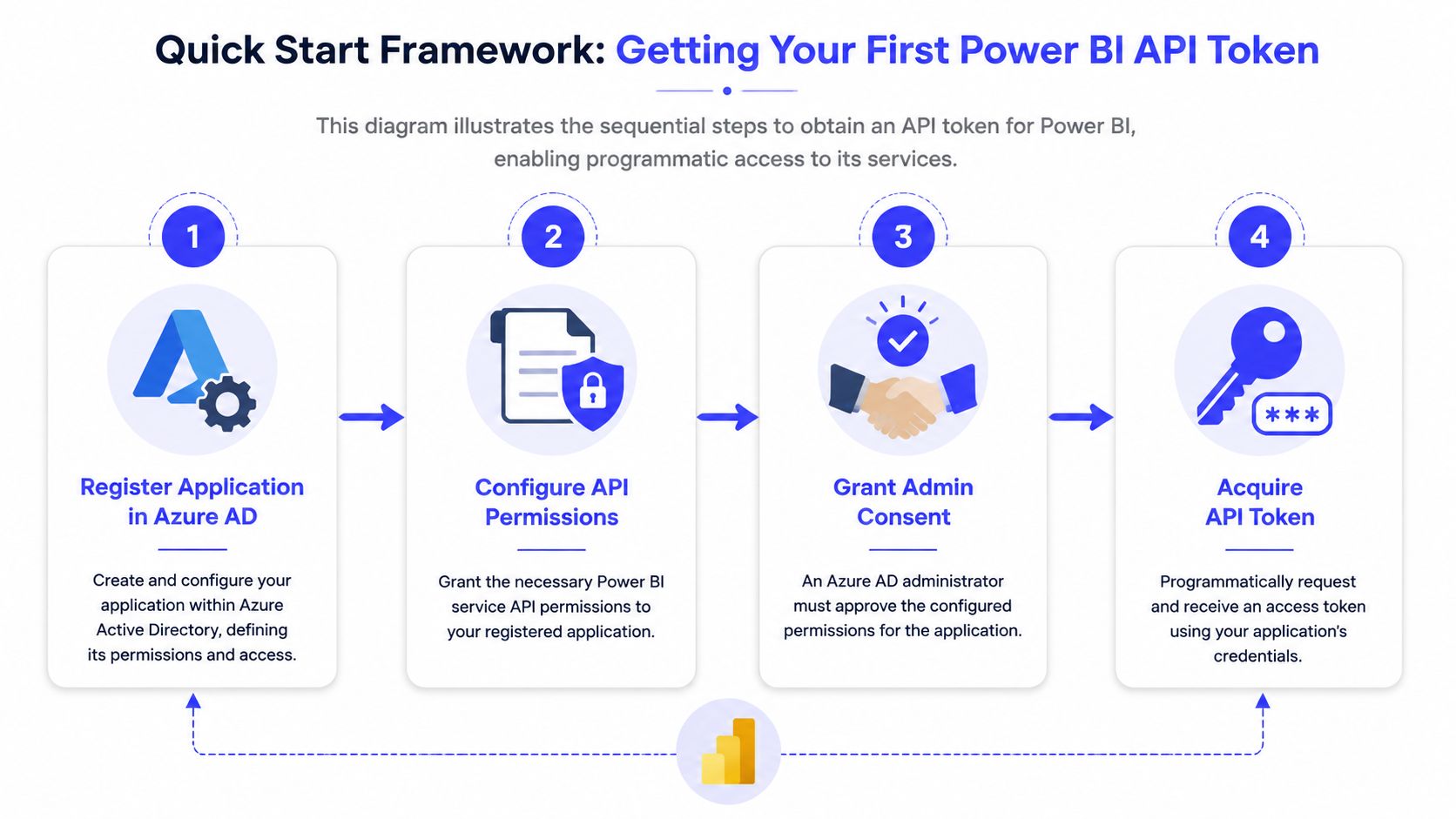
This diagram illustrates the sequential steps to obtain an API token for Power BI, enabling programmatic access to its services.
Step 1 Register the application
Create a dedicated Microsoft Entra ID app registration for the workload you are building. Use one app for one operational purpose where possible. That keeps permission scope clear and makes reviews, incident response, and environment separation much easier.
Many pilots drift off course. A report developer tests with a personal identity, the call succeeds, and nobody notices that the production service has no equivalent access path. Fixing that later usually means changing secrets, workspace access, consent, and deployment scripts at the same time.
Step 2 Configure the right permissions
Keep permissions tight and map them to a single use case. A token that can do everything becomes an audit problem and a support problem.
A practical split looks like this:
- Embedding app gets only the access needed to serve embedded analytics.
- Deployment automation app gets workspace and content permissions tied to release tasks.
- Admin automation app stays separate so high-privilege operations are isolated from application traffic.
That separation reduces blast radius. It also makes it easier to answer a basic governance question: which process changed this workspace, refreshed this dataset, or granted this access?
After the setup basics, it helps to see the flow visually before you script it:
Step 3 Get admin consent
Treat admin consent as part of delivery, not a late-stage request. Engineering can finish the token code, but the application still will not work in the tenant until the required permissions are approved.
Plan this early with the tenant admin or security team. In larger environments, that approval can take longer than the coding work, especially if the app requests broad scopes or will run across multiple workspaces.
The setup is only complete when the app has the right permissions, the tenant allows the authentication pattern, and the approvals are in place.
Step 4 Acquire a token and test one safe call
Once the app registration, secret or certificate, and consent are in place, request a token and validate the identity path with a low-risk API call. Listing workspaces is a good first test because it confirms both authentication and the current access boundary.
Representative cURL pattern:
curl -X POST "https://login.microsoftonline.com/<tenant-id>/oauth2/v2.0/token" \-H "Content-Type: application/x-www-form-urlencoded" \-d "client_id=<client-id>" \-d "client_secret=<client-secret>" \-d "scope=https%3A%2F%2Fanalysis.windows.net%2Fpowerbi%2Fapi%2F.default" \-d "grant_type=client_credentials"Then call a low-risk endpoint with the bearer token:
curl -X GET "https://api.powerbi.com/v1.0/myorg/groups" \-H "Authorization: Bearer <access-token>"If this call fails, stop there and fix identity or permission issues before writing refresh logic, deployment jobs, or embedding flows. That saves time.
Mini example
A useful first production check is simple. Use one app registration to request a token, call the groups endpoint, and verify that the response shows only the workspaces the app is supposed to manage.
That test does three jobs at once. It proves token acquisition works, confirms the permission boundary is narrower than a human admin account, and gives the team a clean baseline before adding higher-impact operations such as refresh triggers or content deployment.
Authentication Patterns Service Principal vs Master User
The authentication method you choose will shape security operations, scaling behavior, and how painful incident response becomes later. This isn't just a coding preference.
Power BI API access relies on OAuth 2.0 token-based authorization, which is one of the reasons it fits secure automation and machine-to-machine workflows in enterprise environments, as reflected in Microsoft's dataset API documentation.
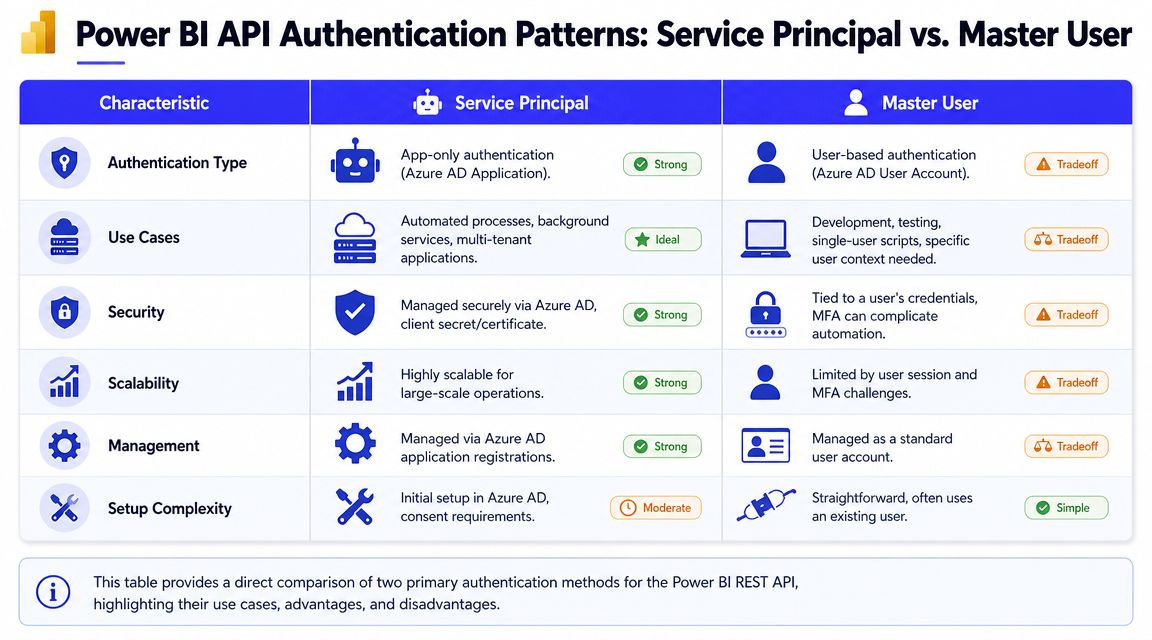
This table provides a direct comparison of two primary authentication methods for the Power BI REST API, highlighting their use cases, advantages, and disadvantages.
The practical difference
A service principal is app-only authentication. A master user is user-based authentication tied to an Azure AD user account.
Here's the decision lens that matters in practice:
| Criteria | Service Principal | Master User |
|---|---|---|
| Identity model | Application identity | Human user identity |
| Best fit | Background jobs, embedding backends, deployment automation | Quick prototypes, user-context scripts, short-lived admin tasks |
| Security posture | Better for controlled automation | Riskier if tied to a real user account |
| Operational burden | Front-loaded setup | Easier to start, harder to govern later |
| Failure mode | Secret or certificate lifecycle issue | Password reset, MFA friction, user offboarding, account lock |
What works in production
For production applications, service principal is usually the right default. It separates application execution from a person's account and avoids a brittle dependency on an employee identity staying unchanged forever.
That matters in three common situations:
- Scheduled automation where jobs must keep running during staff changes.
- Embedded analytics where your backend needs stable app-level access.
- Multi-environment delivery where the same deployment pattern needs consistent identity handling.
Where master user still appears
Master user still shows up in real projects because it's easy to bootstrap. If a team is testing a script or validating tenant settings, it can be a convenient temporary path.
But temporary patterns have a habit of surviving into production.
Architect's view: If your automation breaks because one employee changed password policy or left the company, you never had a production design.
A simple decision rule
Use master user if all of these are true:
- you're in a short-lived proof of concept,
- you need explicit user context right now,
- and you're willing to replace it before release.
Use service principal for almost everything else.
Mini example
One team I'd advise would split identities this way:
- App A handles customer-facing report embedding.
- App B runs deployment and content management tasks.
- App C is reserved for admin automation.
That separation makes access reviews easier and reduces blast radius when one credential set changes.
Core API Workflows with Code Examples
Once authentication is stable, the API becomes useful. Microsoft describes Power BI REST APIs for report server resources as HTTP service endpoints with CRUD-style access to catalog objects such as folders, reports, KPIs, data sources, datasets, refresh plans, and subscriptions. That's why the API can support navigation, discovery, and management patterns instead of isolated one-off calls in the Power BI Report Server REST API documentation.
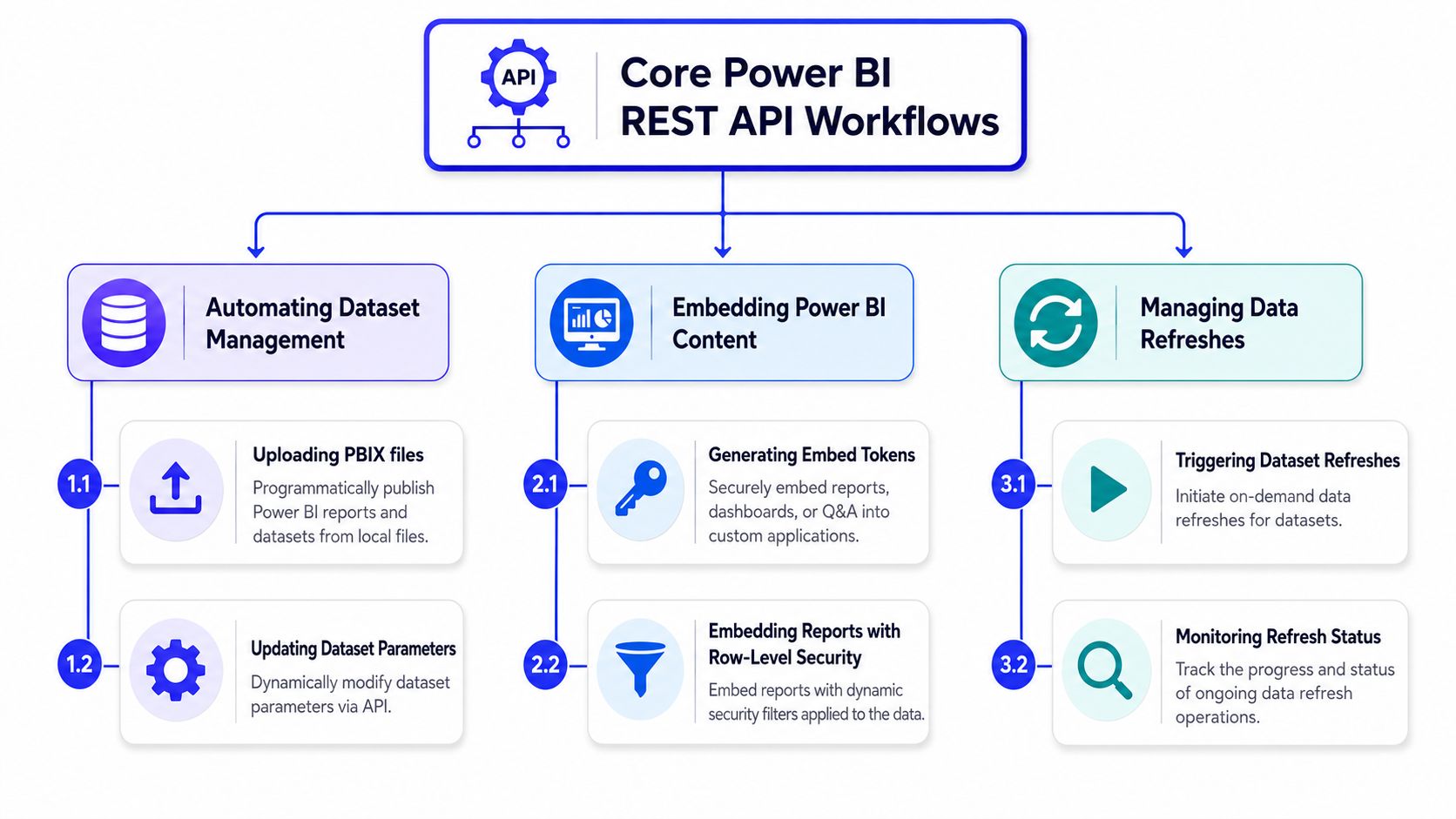
This hierarchy diagram illustrates the main categories of high-value Power BI REST API workflows, branching into specific practical use cases with corresponding code examples.
Workflow 1 Trigger a dataset refresh
This is a common first automation because it removes manual operational work quickly.
Representative Python example:
import requestsACCESS_TOKEN = "<access-token>"GROUP_ID = "<workspace-id>"DATASET_ID = "<dataset-id>"url = f"https://api.powerbi.com/v1.0/myorg/groups/{GROUP_ID}/datasets/{DATASET_ID}/refreshes"headers = {"Authorization": f"Bearer {ACCESS_TOKEN}","Content-Type": "application/json"}response = requests.post(url, headers=headers, json={})print(response.status_code)print(response.text)What this does in business terms:
- lets your pipeline trigger refresh after upstream data lands,
- removes a manual admin step,
- gives engineering a place to add retries, logging, and alerting.
What teams often miss
Don't stop at the POST call. You also need a follow-up status check and a timeout policy. Otherwise your orchestrator knows a refresh was requested, but not whether the data is usable.
Representative status polling idea:
status_url = f"https://api.powerbi.com/v1.0/myorg/groups/{GROUP_ID}/datasets/{DATASET_ID}/refreshes"status_response = requests.get(status_url, headers=headers)print(status_response.json())Operational note: A refresh trigger without status tracking is only half an automation.
Workflow 2 Generate an embed token
This workflow matters when your application needs to show Power BI content inside your own product experience.
Representative .NET example:
using System.Net.Http;using System.Net.Http.Headers;using System.Text;using System.Text.Json;var accessToken = "<access-token>";var groupId = "<workspace-id>";var reportId = "<report-id>";var url = $"https://api.powerbi.com/v1.0/myorg/groups/{groupId}/reports/{reportId}/GenerateToken";using var client = new HttpClient();client.DefaultRequestHeaders.Authorization =new AuthenticationHeaderValue("Bearer", accessToken);var payload = new{accessLevel = "View"};var content = new StringContent(JsonSerializer.Serialize(payload),Encoding.UTF8,"application/json");var response = await client.PostAsync(url, content);var body = await response.Content.ReadAsStringAsync();Console.WriteLine(response.StatusCode);Console.WriteLine(body);What this enables:
- external customer analytics in a SaaS app,
- internal portal embedding with centralized backend control,
- tighter product integration than sending users to the Power BI service.
Real trade-off
Embedding is where weak security patterns become expensive. If your backend issues tokens too broadly, your app becomes the path to overexposed data. Keep token generation server-side and align it to the minimum access needed for the session.
Workflow 3 Run administrative discovery calls
Platform teams usually need inventory and inspection before they need fancy automation. A simple authenticated GET call is often enough to discover what content exists in a workspace.
Representative cURL example:
curl -X GET "https://api.powerbi.com/v1.0/myorg/groups/<workspace-id>/reports" \-H "Authorization: Bearer <access-token>"This is useful for:
- validating deployment results,
- building internal inventory jobs,
- checking whether reports exist before downstream automation runs.
Two mini cases
Mini case 1 Release pipeline validation
A data platform team publishes content into a target workspace, then calls the API to list reports and datasets in that workspace. If the expected artifacts aren't present, the release fails before users see a broken navigation experience.
That's not glamorous. It is reliable.
Mini case 2 Embedded customer portal
A SaaS team uses a backend service to request an embed token for a specific report only after validating the signed-in customer's account context in the application. The frontend never talks directly to token issuance logic. That keeps the trust boundary on the server, where it belongs.
Code review checklist for these workflows
Before shipping any of the examples above, check for these gaps:
- Token handling: Access tokens should stay out of logs and source code.
- Response validation: Don't assume success from a request being accepted.
- Idempotency planning: Refresh and publish operations may be retried, so your code should tolerate repeated calls.
- Correlation IDs: Add request tracing so support teams can investigate failures quickly.
Production Best Practices Governance and Error Handling
Most Power BI REST API guides stop at successful requests. That's fine for demos. It's not enough for systems your business depends on.
The bigger issue after deployment is governance. A useful observation from the AlphaBOLD discussion is that the underserved question isn't “how do I call the API?” It's how teams operationalize those calls for compliance, security, and repeatable deployment across many workspaces in this governance-focused Power BI REST API article.
Governance first, scripting second
A mature setup usually defines:
- Workspace ownership rules so every workspace has a clear operational owner.
- Environment boundaries so dev, test, and production don't blur together.
- Deployment identity rules so automation uses known application identities, not personal accounts.
- Promotion standards so reports, datasets, and settings move through environments predictably.
If you don't define that up front, the API helps you automate inconsistency faster.
Error handling that survives real traffic
Build for normal failure. That means:
Log every API call with context
Include operation name, target workspace or dataset, timestamp, and result. Keep secrets and tokens out of logs.Retry transient failures carefully
Use bounded retries with backoff. Don't hammer the same endpoint in a tight loop.Treat asynchronous operations as stateful workflows
Refresh, publishing, and some admin tasks should be modeled as start, poll, confirm, or fail. One HTTP response rarely tells the whole story.Separate user-facing errors from operational detail
Your application can say “report unavailable” while your logs retain the specific API failure context.
If your team needs a broader testing discipline for these flows, this guide to RESTful API testing is a useful companion for designing negative tests, response validation, and regression checks.
Build your Power BI integration the same way you'd build any internal platform service. Permissions, retries, logs, and deployment discipline matter more than the first successful call.
What does not work well
Some patterns consistently age badly:
| Weak pattern | Why it becomes a problem |
|---|---|
| Shared human account for automation | Hard to audit, brittle during staff changes |
| One app registration for everything | Excessive permissions and unclear ownership |
| No environment separation | Configuration drift and accidental production impact |
| Silent failures in refresh jobs | Business users see stale data before engineering notices |
Power BI REST API Production Checklist
A production-ready implementation should pass a short, blunt review before release. If the answer is “not sure” on several of these items, the system isn't ready yet.
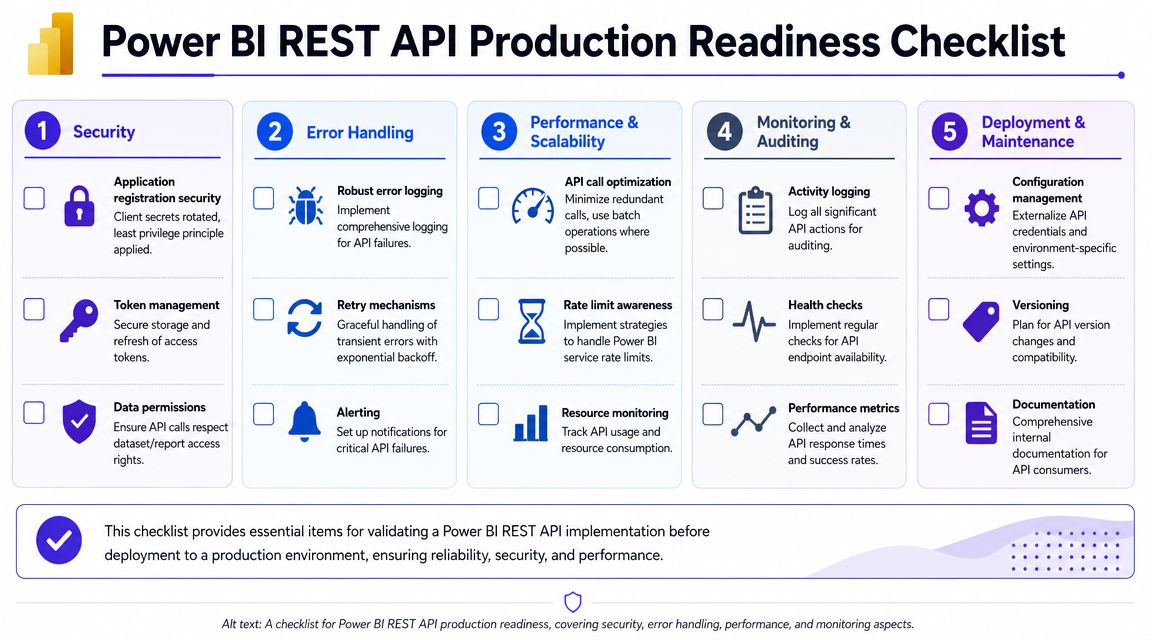
This checklist provides essential items for validating a Power BI REST API implementation before deployment to a production environment, ensuring reliability, security, and performance.
Security checks
- Use app-based authentication for production if the workflow is automated or backend-driven.
- Store secrets outside source code in a managed secret store.
- Apply least privilege so each application only has the access its workflow requires.
- Review workspace access regularly so app permissions don't drift beyond intended scope.
Reliability checks
- Implement retry logic for transient failures.
- Poll long-running operations instead of assuming a start request means success.
- Log failures with enough context to trace the affected workspace, report, or dataset.
- Define alerting paths so failed refresh or publish workflows don't stay invisible.
Environment management checks
- Separate dev, test, and production workspaces with explicit promotion rules.
- Keep configuration externalized so workspace IDs, dataset IDs, and secrets aren't hardcoded.
- Document deployment ownership so support teams know who approves changes and who responds to failures.
Governance checks
- Name workspaces and artifacts consistently so automation can find the right targets.
- Document which APIs your team uses and why.
- Review admin-level automation carefully because those workflows carry broader tenant impact than report-level operations.
Release gate: If you can't rotate credentials, trace failures, and explain who owns each workspace, you don't have a production pattern yet.
Mini template for an internal readiness review
Use this in your engineering review doc:
| Area | Question | Status |
|---|---|---|
| Identity | Is this workflow using the right application identity? | |
| Scope | Are permissions limited to the required resources? | |
| Observability | Can we trace failed calls and long-running operations? | |
| Deployment | Can this be promoted across environments without manual clicks? | |
| Ownership | Does one team clearly own this integration in production? |
What to Do Next Build Your Automated BI Pipeline
The fastest way to get value from the Power BI REST API is to pick one workflow that already causes friction and automate only that first. Don't begin with a giant platform rewrite.
A practical sequence looks like this:
Pilot one workflow
Choose a high-friction task such as dataset refresh orchestration, report embedding, or content promotion between environments.Harden the operating model
Apply the checklist above. Separate identities, externalize secrets, add logs, and define who owns failures.Move from script to service
If the workflow matters to users or releases, wrap it in a maintained backend service instead of leaving it as an ad hoc script.
If your team is still deciding how much of this should remain a simple integration and how much should become a managed internal platform, this guide on how to create an API is useful for thinking through ownership, interfaces, and long-term maintainability.
The goal isn't more API calls. The goal is fewer manual operations, cleaner releases, and more predictable analytics delivery.
Frequently Asked Questions
What's the difference between the Power BI REST API and PowerShell cmdlets
Use the Power BI REST API when you're building application logic, backend services, or custom deployment workflows. It gives you direct HTTP access and fits cleanly into Python, .NET, Node.js, CI pipelines, and service-oriented systems.
Use PowerShell cmdlets when you need quick operational scripting, ad hoc admin tasks, or a command-line friendly wrapper. In practice, many teams prototype with PowerShell and then move critical paths into application code once reliability and reuse matter more.
How should I handle pagination for larger responses
Treat pagination as part of your data collection contract, not an afterthought. If an endpoint returns paged results, build a loop that keeps requesting the next page until the API indicates completion. Store checkpoints if the workflow is long-running or likely to be retried.
For admin and audit-style use cases, this matters a lot. Large estates won't fit cleanly into one response, so your collector should be able to resume safely and avoid duplicate processing.
Can I use the API with Power BI Pro, or do I need Premium
The answer depends on the specific capability you're trying to use. Some API operations are broadly available, while some embedding and enterprise patterns depend on how your Power BI environment is licensed and configured.
The practical advice is to validate the exact feature path you need before you commit to an architecture. That's especially true if you're combining Power BI with other Microsoft business tools. If your project spans app automation and embedded reporting together, this overview of Power Apps and Power BI is a helpful ecosystem-level primer.
Is the REST API enough for production governance by itself
No. The API is the execution surface. Governance comes from how your team defines identity boundaries, environment promotion, naming standards, logging, and ownership. The API helps you enforce that model. It doesn't create the model for you.
If you need engineers who can turn Power BI automation from scattered scripts into a secure production service, ThirstySprout can help you hire vetted senior AI, data, and platform talent fast. Start a pilot, or see sample profiles for teams that can build governed analytics pipelines end to end.
Hire from the Top 1% Talent Network
Ready to accelerate your hiring or scale your company with our top-tier technical talent? Let's chat.